


Football Manager 2026 brings improved visuals and a heavier match engine. Still, low end laptops can struggle during 3D highlights. Many players want smoother gameplay without losing quality. That is why the best graphics settings for low end PC are essential.
FM26 can still feel immersive with the right balance of settings. You can enjoy crowd atmosphere and clean match highlights smoothly. Also, smart adjustments reduce lag instantly. This guide explains the best Football Manager 2026 graphics settings for weak systems.
Best FM26 Graphics Settings for Low End PC Setup
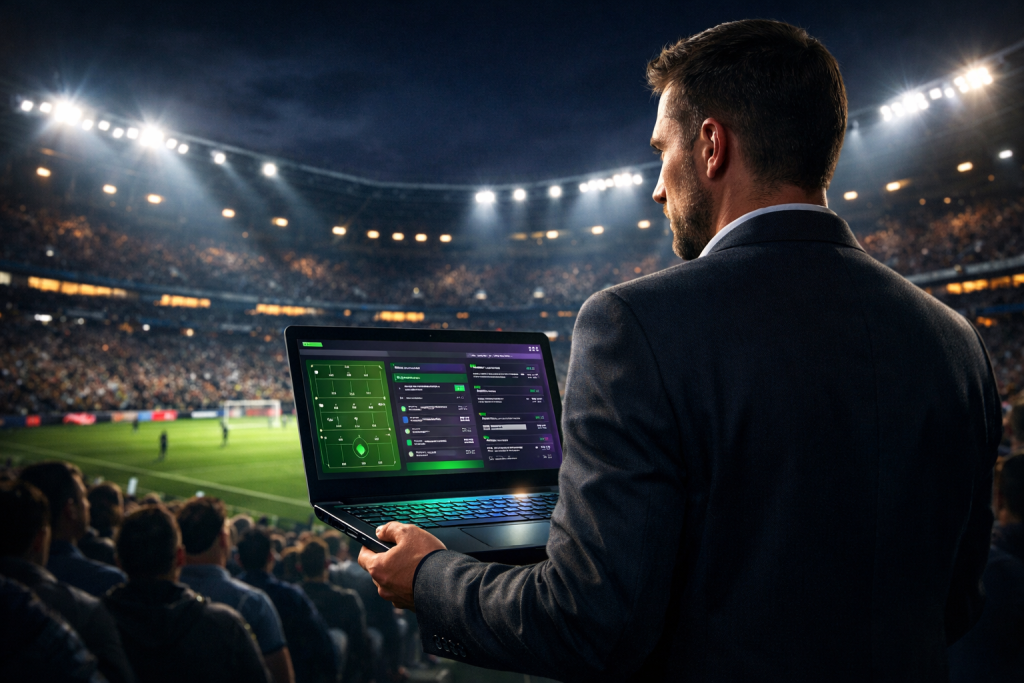
Low end PCs need a balance between visuals and stability. You should always select Custom graphics mode first. This gives full control over heavy performance options. It also prevents FM26 from forcing high presets.
For clean performance, stick with 60 Frame Rate. Render Scale around 75 percent boosts smoothness without hurting visuals. Use Medium Mesh Detail to keep player models clean. These settings improve matches without overloading your laptop.
Texture Quality should stay Medium for sharp kits and pitch detail. Shadow Quality must stay Low because shadows cost too many frames. Anti Aliasing should remain Disabled for maximum performance. Crowd Quality can stay High if your laptop stays stable.
Best Frame Rate and Render Scale for Smooth FM26
Frame Rate controls match smoothness more than any other option. Keeping it at 60 FPS makes movement feel natural and fluid. It also improves camera transitions during highlights. Low end laptops handle 60 better when shadows stay low.
- In case you missed, 7 Proven Methods to Find Wonderkids in FM26
If your laptop cannot handle 60 FPS, switch down to 30. It keeps matches stable and reduces GPU load. Many players enjoy consistent 30 more than choppy 60. Smooth gameplay always matters more than maximum frames.
Render Scale is one of the best performance boosters in FM26. Setting it around 75 percent reduces match rendering load. Matches still look good because FM models stay simple. This tweak alone can remove most stuttering.
Best Mesh and Texture Quality Settings in FM26
Mesh Detail affects how detailed players appear in the 3D engine. Medium Mesh Detail gives the best balance for low end PCs. Low looks too blocky during close camera angles. High can cause major FPS drops.
- Also, read FM26 Transfer Window Tips: 7 Strategies for January Success
Texture Quality controls sharpness of kits, pitch, and stadium surfaces. Medium Texture Quality keeps visuals clean without using too much VRAM. High textures overload integrated graphics quickly. Therefore, Medium remains the best choice.
Together, Medium Mesh and Medium Texture create smooth and modern visuals. You get clear match detail without heavy performance cost. If your laptop is very weak, drop textures to Low. However, Medium works best for most systems.
Best Shadow and Anti Aliasing Settings for Low End PC
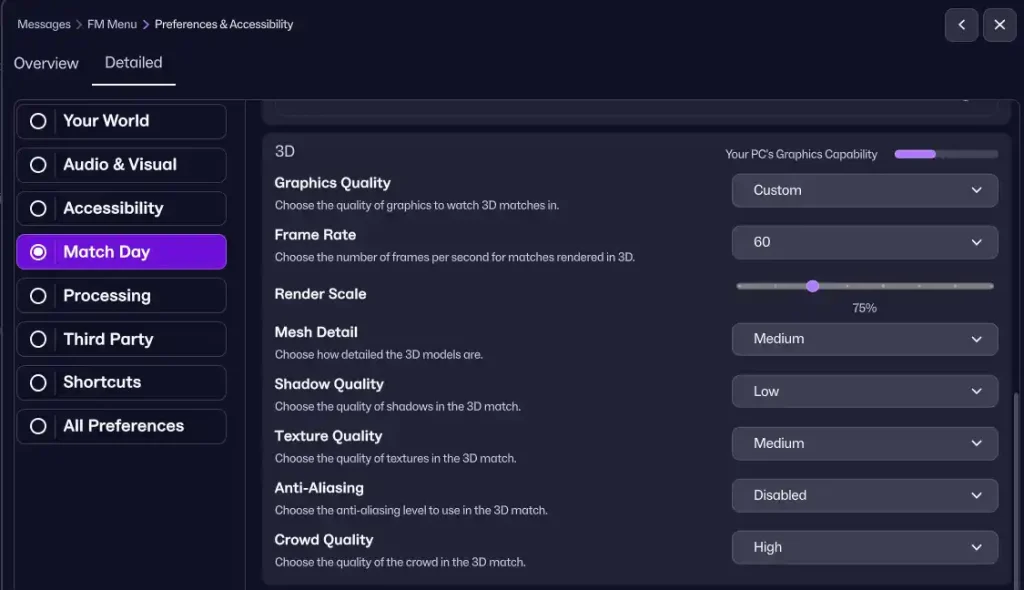
Shadows are the biggest FPS killer in Football Manager 2026. High shadows look nice but cost too much performance. Low end laptops should always keep Shadow Quality on Low. This instantly improves smoothness in night matches.
Anti Aliasing smooths jagged edges but it is very expensive. Weak GPUs struggle with it even on Medium. That is why you should disable Anti Aliasing completely. The visual loss is small compared to the FPS gain.
These two settings decide whether FM26 feels smooth or laggy. Low shadows reduce нагруз instantly during highlights. Disabled Anti Aliasing keeps rendering light and stable. This combination works perfectly for non gaming laptops.
Best Crowd Quality Settings for Stadium Experience
In FM26, Crowd Quality settings make matches feel more vibrant and realistic. Many players want that full crowd experience while playing. Keeping Crowd Quality on High looks exciting and immersive. However, it also increases GPU load.
If your laptop runs the game smoothly, High crowd settings are an excellent option. They make major matches feel intense and realistic. For weaker devices, Medium crowd is the smarter choice. It balances visuals and smooth gameplay.
To keep crowd experience smooth, lower shadows first instead of lowering crowd. Also, keep Render Scale at 75 percent for stability. This way, you enjoy stadium atmosphere without losing performance. Crowd settings should always match your laptop strength.
Best Database Player Pool Settings for Less Lag
Graphics are not the only reason FM26 becomes slow. Database size affects simulation speed more than most players expect. Huge player pools increase processing time every matchday. Low end PCs should always limit database load.
Choose a Small or Medium database for smoother saves. Load only your main league and one or two extra leagues. Avoid selecting many playable leagues at once. View Only leagues give realism without heavy CPU stress.
- You may also like Nepal Super League database
A smaller player pool improves speed everywhere, not just matches. Menus load faster and scouting becomes smoother. Matchdays process quicker with fewer slowdowns. Database optimization is essential for weak laptops.
FAQ on FM26 Graphics Settings for Low End PC

What are the best FM26 settings for weak laptops?
Use Custom mode with Render Scale at 75 percent. Keep Mesh and Texture on Medium for balance. Lower Shadow Quality to Low and turn off Anti-Aliasing. Crowd can stay High if performance remains stable.
Does database size affect Football Manager 2026 lag?
Yes, database size heavily affects CPU performance. Huge player pools slow match processing and menus. Small databases run much faster on low end PCs. Limit playable leagues for smoother gameplay.
How do I keep crowd experience without stuttering?
Keep High Crowd Quality active but decrease shadow quality. Adjust Render Scale to 75% for smoother play. Turn off Anti-Aliasing to cut GPU load. You’ll retain atmosphere and stable FPS.
Conclusion: Best Graphics Settings for Low End PC FM26
The best graphics settings for low end PC in Football Manager 2026 focus on balance. Custom mode gives you control over performance heavy options. Set textures and mesh to Medium, lower shadows, and disable Anti-Aliasing for better performance. Render Scale at 75 percent boosts FPS without ruining visuals.
When watching 3D match highlights, the game’s graphics settings matter most, so keep Crowd Quality high as long as your machine can handle it. Also, choosing a smaller database player pool reduces lag across the entire save. With these FM26 low end PC settings, you get smooth gameplay and better match immersion.


